
It is recommended that you complete the Keystone Courses first before doing the Conservation Courses
Take the FREE GeoWing Academy Mini Course here

The potential for using drones, photogrammetry, and GIS in conservation is truly limitless. By being able to consistently collect high-resolution data and ensuring precise and uniform processing and analysis, GeoWing Academy empowers conservationists, wildlife managers, reserve ecologists, university and PhD students, Environmental Impact Assessors, and nature enthusiasts with unparalleled capabilities.
The training enables you to keep a vigilant eye on our natural spaces by teaching you how to digitise landscapes, track environmental changes, monitor conservation sites, capture ground truth data, enhance management planning, and much more. Optimize your conservation workflow with drone-based GIS skills developed specifically to meet your environmental conservation needs at GeoWing Academy.



In this course you will learn how to estimate a number of quantities for a potential dam/reservoir site in QGIS 3.28.14-Firenze. This course is perfect for those who would like to accurately estimate the floodplain, dam wall length, spillway height, dam wall facade area and the volume of a potential irrigation dam, water reservoir or slimes dam using UAV data, photogrammetry outputs and GIS.
Geowing Academy has left in some of the glitches so that you can see how open source is not always optimised when it is updated or alternative versions of the software are used, this will ensure that it does not come as a surprise when using updated or older/ newer versions of the software. You will need to download and install QGIS from the Software/ Hardware Requirements page for this course.
This course will take you 1 hour to complete (part 1)

In this course you will learn
PART
ONE
- Generating Dam Base Vectors
- Demarcate a dam wall in drone data
- Generate contours
- Isolate specific features for virtual dam building
- Generating Basic Virtual Dam Wall
- Snapping features
- Merging data
- Calculate lengths in metres
- Prep Attribute Data for further analysis
- Generate Virtual Dam
- Generate virtual dam
- Fix data
- Calculate dam area in metres squared
- Understanding attribute table outputs
- Calculate dam volume in cubic metres
- Attribute Table Information
- Make it pretty
– Visualise the data
PART
TWO
In Part 2 we look at how to estimate the façade area of the dam wall in metres squared. This will help us calculate the volume of materials needed to construct a theoretical dam wall for the predetermined dam calculated in Part 1.
- Group Data from Part 1
- Creating point information in attribute table for wall height segmentation
- Creating intersection points
- Adding x, y coordinates to points
- Calculating height from ground point to the top of the theoretical dam wall
- Correct sequencing of point information
- Calculating the different lengths between each points on the ground (wall base profile segmentation)
- Saving data and trouble shooting saving issues.
- Exporting data table to Excel, correcting for Z value at point 1, organising data table.
- Calculating segmentation areas and over all wall façade area in metres squared.
- Looking at dam area computation differences
- Reorganising and consolidating raw data into single table
- Tips & Tricks
Free data is provided for this course
(check Course System Requirements page to make sure your computer can run the programs and therefore the data set)
USD$100.00


This course will be looking at monitoring river estuary changes over time using drone photogrammetry data related to sediment deposition and erosion as well as estuary environment health monitoring. This is useful for managing estuaries in protected areas as well as areas where infrastructure lining river mouth may be affected by high tides or inland flooding. This will also provide much needed insight into how estuaries function over time and will prove invaluable for river management
Click here for more information Part 1
Introduction
- Estuary monitoring background
- Why is it necessary
- Visual overview of two different data sets in QGIS
Process
- Load data into Cloud Compare
- Manually align point clouds
- The importance of data alignments
- Navigation tricks
- Difficulties with water & photogrammetry.
- Checking data alignment & fixed feature consistency using points to point distance.
- Understanding scalar fields & noise
- SAVE, SAVE, SAVE!!
- Removing “noise”
- Change detection. Calculating erosion & deposition
- Visualising the change detection.
- Changing colour ramps for more complex environments & visualise finer details
- Alignment faults & the importance of over scanning a site.
Click here for more information Part 2
Data Processing
- Preparing segmentation polyline for sediment deposition isolation
- Clip points to polyline
- Calculating sediment deposition volume
- A discussion on refining data for volumetric calculations
- Verify data alignment & assessing differences
- Comparing Change data (interpolated vs empty)
- Checking z axis change data (ODM vs CC)
- Deciding on calculation method (what to consider)
- Bank vegetation overview
- Tips & Tricks
Free data is provided for this course
(check Course System Requirements page to make sure your computer can run the programs and therefore the data set)
USD$150.00

MACHINE LEARNING USING OPEN SOURCE LIBRARIES
Now available
GeoWing Academies most powerful course yet. Learn how to build your own machine learning (ML) pipeline using open source Machine Learning Libraries from Orfeo Toolbox in conjunction with QGIS. This course will show you how to design your own model to find & locate young pine trees within a pine plantation, count the number of detections, look at individual plant health & calculate the canopy area using RGB drone data. This ML build can then be used to find almost any objects within drone data thereafter. Detailed tuning documentation & important considerations documentation comes with the course along with the free drone training data & bonus material. It is highly recommended that you complete all the GeoWing Academy Keystone Courses before doing the GeoWing Academy Machine Learning Course otherwise you will not understand the processes and methodology taught on this course.
Click here for more information Part 1
Introduction
- What is Orfeo Toolbox & How to Install it
- What can Orfeo Toolbox be used for (refer to provided PDF document for more details on other processing algorithms other than ML)
Process
-
- Import training data into QGIS
- Create the training layer for object detection.
- How to create & name folders & files correctly
- Introduction to Processing Algorithms (Test 1)
- Image Statistics
- Train Image Classifier using knn algorithm
- Classify Image
- Inspect data
- Counting (Example Only)
- Introduction to Processing Algorithms (Test 2)
- Train Image Classifier using libsvm
- Inspect data
- Add buffers
- Add centroids
- Importance of training data, algorithm considerations & corrections
- Tips & Tricks
Course duration: 46mins
Click here for more information Part 2
Process
Build an automated Machine Learning pipe line to count newly planted pine trees, inspect the plant health, location, canopy area of each tree & more
- Add layers
- Add Index calculations
- Image Stats
- Train Image Classifier
- LibSVM algorithm
- Test settings
- Classify Image Outputs
- Add canopy area
- Zonal Statistics on Plant Health
- Centroids
- Points can be used to add GPS data or plant ID labels for reporting etc.
- Tips & Tricks
Course duration: 39:52 mins
Click here for more information Part 3 (Bonus Material)
Introduction
After running the Machine Learning Pipeline built in the Machine Learning course, lets look at how we can check the accuracy of our ML model
- Inputs, ML pipeline & outputs generated
- What is a confusion matrix
- How to import confusion table into MS Excel
- Organising data table
- Understanding the confusion matrix
- Calculating the accuracy of the detection model
- What this means.
- Tips & Tricks
Course duration: 07:11 mins
USD$250.00
USD$200.00
FANTASTIC FIELDS
Now available
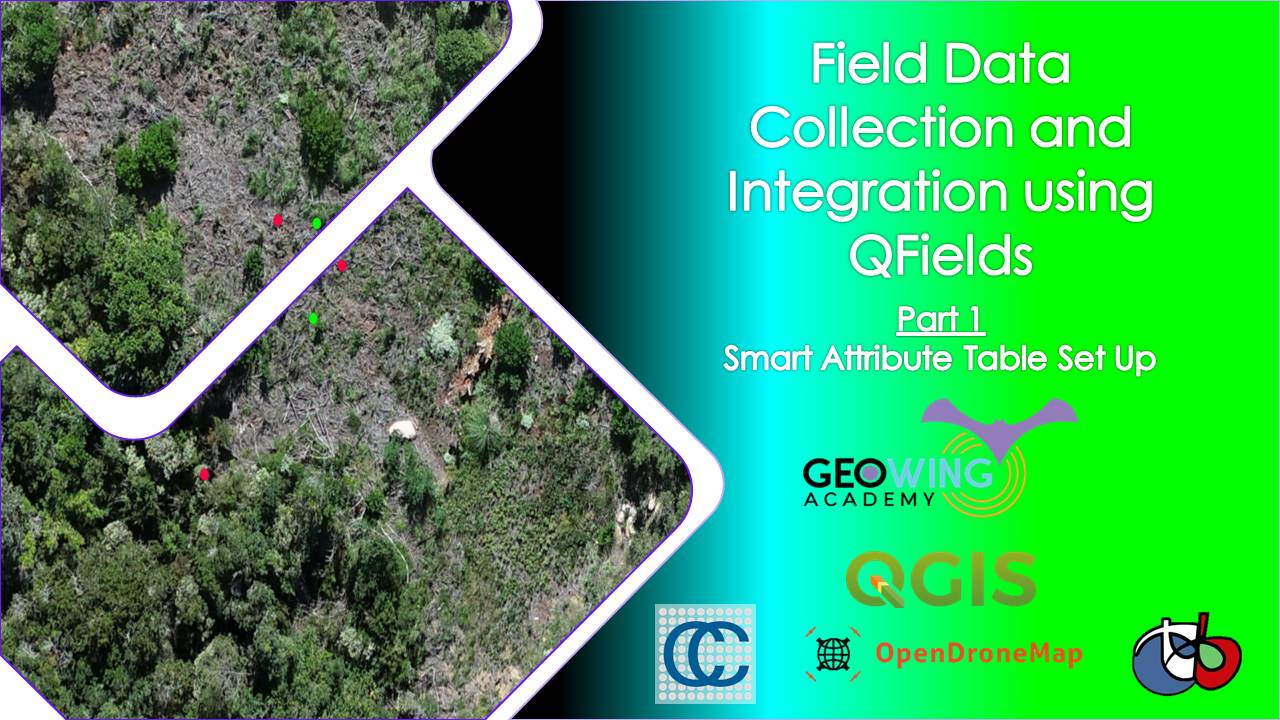
Take your fieldwork to the next level with QField, the powerful open-source data capture app from the QGIS team, designed for Android and iOS devices. In this course, you’ll learn how to set up smart, customizable attribute forms, sync projects seamlessly between desktop and mobile, and choose the best transfer methods—whether cable or wireless. Say goodbye to messy pen-and-paper notes and hello to fast, accurate, and project-specific digital workflows that save time, cut costs, and boost data quality. Whether you’re working with ground surveys, drone imagery, or satellite data, QField gives you the flexibility to capture, validate, and integrate your field data directly into your GIS with ease. It is recommended that you complete at least the Foundation Course of the Keystone Courses before attempting this course or you may get lost. And at the end of part 4, there is a little sprise !
!
Click here for more information Part 1
Process
Create a Smart Attribute Table that will provide dropdown menus, automated field inputs on feature creation and allow you to take photos in the field for fast, structured, seamless field data acquisition
- Introduction
- What are the objectives?
- What field data is required?
- Image compression
- Creating the vector layer & fields
- Drag/Drop designer
- Adding Tabs
- Visibility Control
- Value Maps
- Null Constraints
- Configuring Photos
- Time & Date Automation
- Attribute based symbols
- Saving Styles
- Duplicating a vector layer for use in other projects with the same field data requirements.
- Tips & Tricks
Free data is provided for this course
(check Course System Requirements page to make sure your computer can run the programs and therefore the data set, will run on almost all modern computers and laptops, very light on resources)
Click here for more information Part 2
Processing
Learn how to put the project created in Part 1 onto your device (cell phone, tablet, iPhone, iPad) using the cable method. This is very useful when there is no Wifi or Data signals when out in remote areas or areas with a large amount of radio interference that may hinder wireless transfer.
NOTE!! This example uses Android, Apple products will function in a similar manner.
- Introduction
- What are the objectives?
- How to install QSync Plugin
- Configure the project for QField Cable transfer
- Which parameters to use & why
- Some useful features
- Package the project for cable transfer for QFields
- Ensure device is ready to Transfer Files
- Copy QField Package to device
- Important notice when using device SD card for project storage
- Import project into QFields from SD card
- How to create data in the field
- Tips & Tricks
- Locating the project folder on your device
- How to find the project path on the device
- Locate & copy device project back to computer
- Open project & view field data in Smart Attribute table
- Tips & Tricks
Click here for more information Part 3
Process
Learn how to put the project created in Part 1 onto your device (cell phone, tablet, iPhone, iPad) using the QField Cloud method. This is very useful when there is Wifi or Data connections. Seamless field to cloud data push saves a tremendous amount of time and if projects are being conducted far from the office/GIS data handler, the field data can be integrated into the GIS project immediately for analysis.
NOTE!! This example uses Android, Apple products will function in a similar manner.
- How to load saved style to Plant Data geopackage in a new project
- Setting up a QField Account online
- A brief run through of the QField website
- How to register
- Some important notes
- Potential issues when packaging
- Saving out the QGIS project and prep for QField
- Creating the QField Cloud Project
- Viewing project on cloud
- Data Provider issue (This has been resolved since recording but is still an important part of understanding QField Cloud nuance )
- Opening QGIS project in QField from the cloud
- Using the QFIeld app
- Uploading field data to the cloud from the field
- The differences between “Sync” and “Push” data
- Viewing field data on the QField Cloud Website
- Opening QField data back in QGIS
- Syncing field data to the QGIS project
- Ensure “Prefer Cloud Actions”
- Looking at QField Cloud Project folders on the computer
- Tips & Tricks
Click here for more information Part 4
Process
Lets have a look inside the QField app & explore the many feature available to you that make your field data collection super easy.
NOTE!! This example uses Android, Apple products will function in a similar manner.
- Quick Measuring Tool
- Segment
- Azimuths
- Total length
- Tap & Hold layer options
- Realign map North/South with Compass
- In field editing tools
- Lock Cursor to current location
- Edit Features in field
- Drop down menu run through
- Word editing
- Set destination etc.
- Drop down menu run through
- Search Menu
- Drop down menu run through
- Search fields or layers
- Enter coordinates etc
- Drop down menu run through
- Revert to current GPS location
- Tips & Tricks
USD$150.00
USD$100.00
It is recommended that you complete the Keystone Courses first before doing the Conservation Course
Take the FREE GeoWing Academy Mini Course here
The potential for using drones, photogrammetry, and GIS in conservation is truly limitless. By being able to consistently collect high-resolution data and ensuring precise and uniform processing and analysis, GeoWing Academy empowers conservationists, wildlife managers, reserve ecologists, university and PhD students, Environmental Impact Assessors, and nature enthusiasts with unparalleled capabilities.
The training enables you to keep a vigilant eye on our natural spaces by teaching you how to digitise landscapes, track environmental changes, monitor conservation sites, capture ground truth data, enhance management planning, and much more. Optimize your conservation workflow with drone-based GIS skills developed specifically to meet your environmental conservation needs at GeoWing Academy.
In this course you will learn how to estimate a number of quantities for a potential dam/reservoir site in QGIS 3.28.14-Firenze. This course is perfect for those who would like to accurately estimate the floodplain, dam wall length, spillway height, dam wall facade area and the volume of a potential irrigation dam, water reservoir or slimes dam using UAV data, photogrammetry outputs and GIS.
Geowing Academy has left in some of the glitches so that you can see how open source is not always optimised when it is updated or alternative versions of the software are used, this will ensure that it does not come as a surprise when using updated or older/ newer versions of the software. You will need to download and install QGIS from the Software/ Hardware Requirements page for this course.
This course will take you 1 hour to complete (part 1)
In this course you will learn
PART
ONE
- Generating Dam Base Vectors
– Demarcate a dam wall in drone data
– Generate contours
– Isolate specific features for virtual dam building - Generating Basic Virtual Dam Wall
– Snapping features
– Merging data
– Calculate lengths in metres
– Prep Attribute Data for further analysis - Generate Virtual Dam
– Generate virtual dam
– Fix data
– Calculate dam area in metres squared
– Understanding attribute table outputs
– Calculate dam volume in cubic metres
– Attribute Table Information - Make it pretty
– Visualise the data
PART
TWO
COMING SOON
- Calculating dam wall façade area for earth dam wall material volume calculations
Free data is provided for this course
(check Course System Requirements page to make sure your computer can run the programs and therefore the data set)
USD$100.00
This course will be looking at monitoring river estuary changes over time using drone photogrammetry data related to sediment deposition and erosion as well as estuary environment health monitoring. This is useful for managing estuaries in protected areas as well as areas where infrastructure lining river mouth may be affected by high tides or inland flooding. This will also provide much needed insight into how estuaries function over time and will prove invaluable for river management
Click here for more information Part 1
Introduction
- Estuary monitoring background
- Why is it necessary
- Visual overview of two different data sets in QGIS
Process
- Load data into Cloud Compare
- Manually align point clouds
- The importance of data alignments
- Navigation tricks
- Difficulties with water & photogrammetry.
- Checking data alignment & fixed feature consistency using points to point distance.
- Understanding scalar fields & noise
- SAVE, SAVE, SAVE!!
- Removing “noise”
- Change detection. Calculating erosion & deposition
- Visualising the change detection.
- Changing colour ramps for more complex environments & visualise finer details
- Alignment faults & the importance of over scanning a site.
Click here for more information Part 2
Data Processing
- Preparing segmentation polyline for sediment deposition isolation
- Clip points to polyline
- Calculating sediment deposition volume
- A discussion on refining data for volumetric calculations
- Verify data alignment & assessing differences
- Comparing Change data (interpolated vs empty)
- Checking z axis change data (ODM vs CC)
- Deciding on calculation method (what to consider)
- Bank vegetation overview
- Tips & Tricks
Free data is provided for this course
(check Course System Requirements page to make sure your computer can run the programs and therefore the data set)
MACHINE LEARNING
Now available
GeoWing Academies most powerful course yet. Learn how to build your own machine learning pipeline using open source Machine Learning Libraries from Orfeo Toolbox in conjunction with QGIS. This course will show you how to design your own model to find & locate young pine trees within a pine plantation, count the number of detections, look at individual plant health & calculate the canopy area using RGB drone data. This ML build can then be used to find almost any objects within drone data thereafter. Detailed tuning documentation & important considerations documentation comes with the course along with the free drone training data & bonus material. It is highly recommended that you complete all the GeoWing Academy Keystone Courses before doing the GeoWing Academy Machine Learning Course otherwise you will not understand the processes and methodology taught on this course.
Click here for more information Part 1
Introduction
- What is Orfeo Toolbox & How to Install it
- What can Orfeo Toolbox be used for (refer to provided PDF document for more details on other processing algorithms other than ML)
Process
-
- Import training data into QGIS
- Create the training layer for object detection.
- How to create & name folders & files correctly
- Introduction to Processing Algorithms (Test 1)
- Image Statistics
- Train Image Classifier using knn algorithm
- Classify Image
- Inspect data
- Counting (Example Only)
- Introduction to Processing Algorithms (Test 2)
- Train Image Classifier using libsvm
- Inspect data
- Add buffers
- Add centroids
- Importance of training data, algorithm considerations & corrections
- Tips & Tricks
Course duration: 46mins
Click here for more information Part 2
Process
Build an automated Machine Learning pipe line to count newly planted pine trees, inspect the plant health, location, canopy area of each tree & more
- Add layers
- Add Index calculations
- Image Stats
- Train Image Classifier
- LibSVM algorithm
- Test settings
- Classify Image Outputs
- Add canopy area
- Zonal Statistics on Plant Health
- Centroids
- Points can be used to add GPS data or plant ID labels for reporting etc.
- Tips & Tricks
Course duration: 39:52 mins
Click here for more information Part 3 (Bonus Material)
Introduction
After running the Machine Learning Pipeline built in the Machine Learning course, lets look at how we can check the accuracy of our ML model
- Inputs, ML pipeline & outputs generated
- What is a confusion matrix
- How to import confusion table into MS Excel
- Organising data table
- Understanding the confusion matrix
- Calculating the accuracy of the detection model
- What this means.
- Tips & Tricks
Course duration: 07:11 mins
USD$250.00
USD$200.00
FANTASTIC FIELDS
Now available
Take your fieldwork to the next level with QField, the powerful open-source data capture app from the QGIS team, designed for Android and iOS devices. In this course, you’ll learn how to set up smart, customizable attribute forms, sync projects seamlessly between desktop and mobile, and choose the best transfer methods—whether cable or wireless. Say goodbye to messy pen-and-paper notes and hello to fast, accurate, and project-specific digital workflows that save time, cut costs, and boost data quality. Whether you’re working with ground surveys, drone imagery, or satellite data, QField gives you the flexibility to capture, validate, and integrate your field data directly into your GIS with ease. It is recommended that you complete at least the Foundation Course of the Keystone Courses before attempting this course or you may get lost And at the end of part 4, there is a little sprise!
Click here for more information Part 1
Process
Create a Smart Attribute Table that will provide dropdown menus, automated field inputs on feature creation and allow you to take photos in the field for fast, structured, seamless field data acquisition
- Introduction
- What are the objectives?
- What field data is required?
- Image compression
- Creating the vector layer & fields
- Drag/Drop designer
- Adding Tabs
- Visibility Control
- Value Maps
- Null Constraints
- Configuring Photos
- Time & Date Automation
- Attribute based symbols
- Saving Styles
- Duplicating a vector layer for use in other projects with the same field data requirements.
- Tips & Tricks
Free data is provided for this course
(check Course System Requirements page to make sure your computer can run the programs and therefore the data set, will run on almost all modern computers and laptops, very light on resources)
Click here for more information Part 2
Data Processing
Learn how to put the project created in Part 1 onto your device (cell phone, tablet, iPhone, iPad) using the cable method. This is very useful when there is no Wifi or Data signals when out in remote areas or areas with a large amount of radio interference that may hinder wireless transfer.
NOTE!! This example uses Android, Apple products will function in a similar manner.
- Introduction
- What are the objectives?
- How to install QSync Plugin
- Configure the project for QField Cable transfer
- Which parameters to use & why
- Some useful features
- Package the project for cable transfer for QFields
- Ensure device is ready to Transfer Files
- Copy QField Package to device
- Important notice when using device SD card for project storage
- Import project into QFields from SD card
- How to create data in the field
- Tips & Tricks
- Locating the project folder on your device
- How to find the project path on the device
- Locate & copy device project back to computer
- Open project & view field data in Smart Attribute table
- Tips & Tricks
Click here for more information Part 3
Process
Learn how to put the project created in Part 1 onto your device (cell phone, tablet, iPhone, iPad) using the QField Cloud method. This is very useful when there is Wifi or Data connections. Seamless field to cloud data push saves a tremendous amount of time and if projects are being conducted far from the office/GIS data handler, the field data can be integrated into the GIS project immediately for analysis.
NOTE!! This example uses Android, Apple products will function in a similar manner.
- How to load saved style to Plant Data geopackage in a new project
- Setting up a QField Account online
- A brief run through of the QField website
- How to register
- Some important notes
- Potential issues when packaging
- Saving out the QGIS project and prep for QField
- Creating the QField Cloud Project
- Viewing project on cloud
- Data Provider issue (This has been resolved since recording but is still an important part of understanding QField Cloud nuance )
- Opening QGIS project in QField from the cloud
- Using the QFIeld app
- Uploading field data to the cloud from the field
- The differences between “Sync” and “Push” data
- Viewing field data on the QField Cloud Website
- Opening QField data back in QGIS
- Syncing field data to the QGIS project
- Ensure “Prefer Cloud Actions”
- Looking at QField Cloud Project folders on the computer
- Tips & Tricks
Click here for more information Part 4
Process
Lets have a look inside the QField app & explore the many feature available to you that make your field data collection super easy.
NOTE!! This example uses Android, Apple products will function in a similar manner.
-
uQuick Measuring Tool
-
Segment
-
Azimuths
-
Total length
-
-
Tap & Hold layer options
-
Realign map North/South with Compass
-
In field editing tools
-
Lock Cursor to current location
-
Edit Features in field
-
Drop down menu run through
-
Word editing
-
Set destination etc.
-
-
-
Search Menu
-
Drop down menu run through
-
Search fields or layers
-
Enter coordinates etc
-
-
-
Revert to current GPS location
-
Tips & Tricks
USD$150.00
USD$100.00